警告
This documentation is for EF7 onwards. For EF6.x and earlier release see http://msdn.com/data/ef. 本文档是基于EF7版本.对于EF6.x及更早的版本请参见 http://msdn.com/data/ef.
注解
This article uses EF 7.0.0-rc1 which is the latest pre-release available on NuGet.org. You can find nightly builds of the EF7 code base hosted on https://www.myget.org/F/aspnetvnext/ but we do not maintain up-to-date documentation for nightly builds.
Console Application to New Database
In this walkthrough, you will build a console application that performs basic data access against a Microsoft SQL Server database using Entity Framework. You will use migrations to create the database from your model.
In this article:
小技巧
You can view this article’s sample on GitHub.
Prerequisites
The following prerequisites are needed to complete this walkthrough:
- Visual Studio 2013 or Visual Studio 2015
- Latest version of NuGet Package Manager
- Latest version of Windows PowerShell
Latest version of NuGet Package Manager
Installing EF7 requires an up-to-date version of NuGet Package Manager. You can install the latest version from Visual Studio Gallery. Make sure you restart Visual Studio after installing the update.
Create a new project
- Open Visual Studio (this walkthrough uses 2015 but you can use any version from 2013 onwards)
- From the left menu select
- Select the Console Application project template
- Ensure you are targeting .NET Framework 4.5.1 or later
- Give the project a name and click OK
Install Entity Framework
To use EF7 you install the package for the database provider(s) you want to target. This walkthrough uses SQL Server. For a list of available providers see Database Providers.
- Run
Install-Package EntityFramework.MicrosoftSqlServer –Pre
Later in this walkthrough we will also be using some Entity Framework commands to maintain the database. So we will install the commands package as well.
- Run
Install-Package EntityFramework.Commands –Pre
Create your model
Now it’s time to define a context and entity classes that make up your model.
- Enter Model.cs as the name and click OK
- Replace the contents of the file with the following code
注解
Notice the OnConfiguring method (new in EF7) that is used to specify the provider to use and, optionally, other configuration too.
1 2 3 4 5 6 7 8 9 10 11 12 13 14 15 16 17 18 19 20 21 22 23 24 25 26 27 28 29 30 31 32 33 34 35 36 37 38 39 40 41 42 43 44 45 46 | using Microsoft.Data.Entity;
using System.Collections.Generic;
namespace EFGetStarted.ConsoleApp
{
public class BloggingContext : DbContext
{
public DbSet<Blog> Blogs { get; set; }
public DbSet<Post> Posts { get; set; }
protected override void OnConfiguring(DbContextOptionsBuilder optionsBuilder)
{
// Visual Studio 2015 | Use the LocalDb 12 instance created by Visual Studio
optionsBuilder.UseSqlServer(@"Server=(localdb)\mssqllocaldb;Database=EFGetStarted.ConsoleApp.NewDb;Trusted_Connection=True;");
// Visual Studio 2013 | Use the LocalDb 11 instance created by Visual Studio
// optionsBuilder.UseSqlServer(@"Server=(localdb)\v11.0;Database=EFGetStarted.ConsoleApp.NewDb;Trusted_Connection=True;");
}
protected override void OnModelCreating(ModelBuilder modelBuilder)
{
// Make Blog.Url required
modelBuilder.Entity<Blog>()
.Property(b => b.Url)
.IsRequired();
}
}
public class Blog
{
public int BlogId { get; set; }
public string Url { get; set; }
public List<Post> Posts { get; set; }
}
public class Post
{
public int PostId { get; set; }
public string Title { get; set; }
public string Content { get; set; }
public int BlogId { get; set; }
public Blog Blog { get; set; }
}
}
|
小技巧
In a real application you would typically put each class from your model in a separate file. For the sake of simplicity, we are putting all the classes in one file for this tutorial.
Create your database
Now that you have a model, you can use migrations to create a database for you.
- Run
Add-Migration MyFirstMigrationto scaffold a migration to create the initial set of tables for your model. - Run
Update-Databaseto apply the new migration to the database. Because your database doesn’t exist yet, it will be created for you before the migration is applied.
小技巧
If you make future changes to your model, you can use the Add-Migration command to scaffold a new migration to make the corresponding schema changes to the database. Once you have checked the scaffolded code (and made any required changes), you can use the Update-Database command to apply the changes to the database.
EF uses a __EFMigrationsHistory table in the database to keep track of which migrations have already been applied to the database.
Use your model
You can now use your model to perform data access.
- Open Program.cs
- Replace the contents of the file with the following code
1 2 3 4 5 6 7 8 9 10 11 12 13 14 15 16 17 18 19 20 21 22 23 24 | using System;
namespace EFGetStarted.ConsoleApp
{
class Program
{
static void Main(string[] args)
{
using (var db = new BloggingContext())
{
db.Blogs.Add(new Blog { Url = "http://blogs.msdn.com/adonet" });
var count = db.SaveChanges();
Console.WriteLine("{0} records saved to database", count);
Console.WriteLine();
Console.WriteLine("All blogs in database:");
foreach (var blog in db.Blogs)
{
Console.WriteLine(" - {0}", blog.Url);
}
}
}
}
}
|
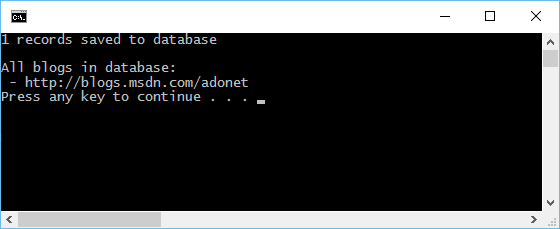
You will see that one blog is saved to the database and then the details of all blogs are printed to the console.